Flashcards Logo

Final Phase

  • Dashboard
  • How to use
  • Feedback
  • Flashcards
    • Sets
    • Flashcards
    • Revise
  • Study
    • Plans
    • Revise plan
  • Account
    • Settings
    • Log In
  • Premium
    • Upgrade plan
Finalphase LogoFinal Phase
Dashboard
Dashboard
How to use
How to use
Feedback
Feedback
Flashcards
Sets
Sets
Flashcards
Flashcards
Revise
Revise
Study
Plans
Plans
Revise plan
Revise plan
Account
Settings
Settings
Premium
Upgrade plan
Upgrade plan
  • Log In
GuestClick here to log in

Guide to Using the Final Phase App

Welcome to Final Phase!

This guide is designed for everyone, from complete beginners to those familiar with learning applications, who want to enhance their studies using digital flashcards and personalized learning plans.

Whether you're new to flashcard apps or looking to maximize your use of Final Phase, this guide will walk you through the key features and how to use them effectively.

Below, we cover the main sections of the app and the methodology behind each feature.


Table of Contents

  • What are flashcards?
  • Dashboard
  • Learn (Flashcards)
    • Types Of Flashcards
    • Flashcards Management Options
    • How To Select Items
    • Best Practices
  • Sets
    • Add New Sets
    • Set Management Options
    • Search and Filter
    • Actions Within a Set
    • Best Practices
  • Revise (Flashcards)
    • How To Revise
    • When You Revise It All
    • Best Practices
  • Study Plans (Premium)
    • Creating a New Study Plan
    • Viewing Your Plans
    • Revising Your Study Plan
    • Best Practices
  • Reminders
  • Settings
  • Methodology

What are flashcards?

Before we dive into the app's functionalities, let's quickly cover what flashcards are.

Flashcards are digital cards used for learning and memorization. Typically, one side displays a question, term, or prompt, and the other side shows the answer or explanation.

They are excellent tools for:

  • Learning new vocabulary
  • Memorizing facts (e.g., historical dates, scientific terms)
  • Understanding concepts
  • Practicing problem-solving

Tips for Creating Effective Flashcards:

  • Keep it Concise: Focus on one key piece of information per card. Avoid lengthy paragraphs.
  • Use Clear Language: Write in a way that is easy for you to understand quickly.
  • One Idea Per Card: Don't try to cram multiple questions or concepts onto a single card.
  • Utilize Both Sides: Question/Prompt on the front, Answer/Explanation on the back.
  • Personalize: Use your own words, examples, or mnemonics that resonate with you.

Now, let's explore the Final Phase app features.


Dashboard

The "Dashboard" provides a quick overview of your learning activity and progress.
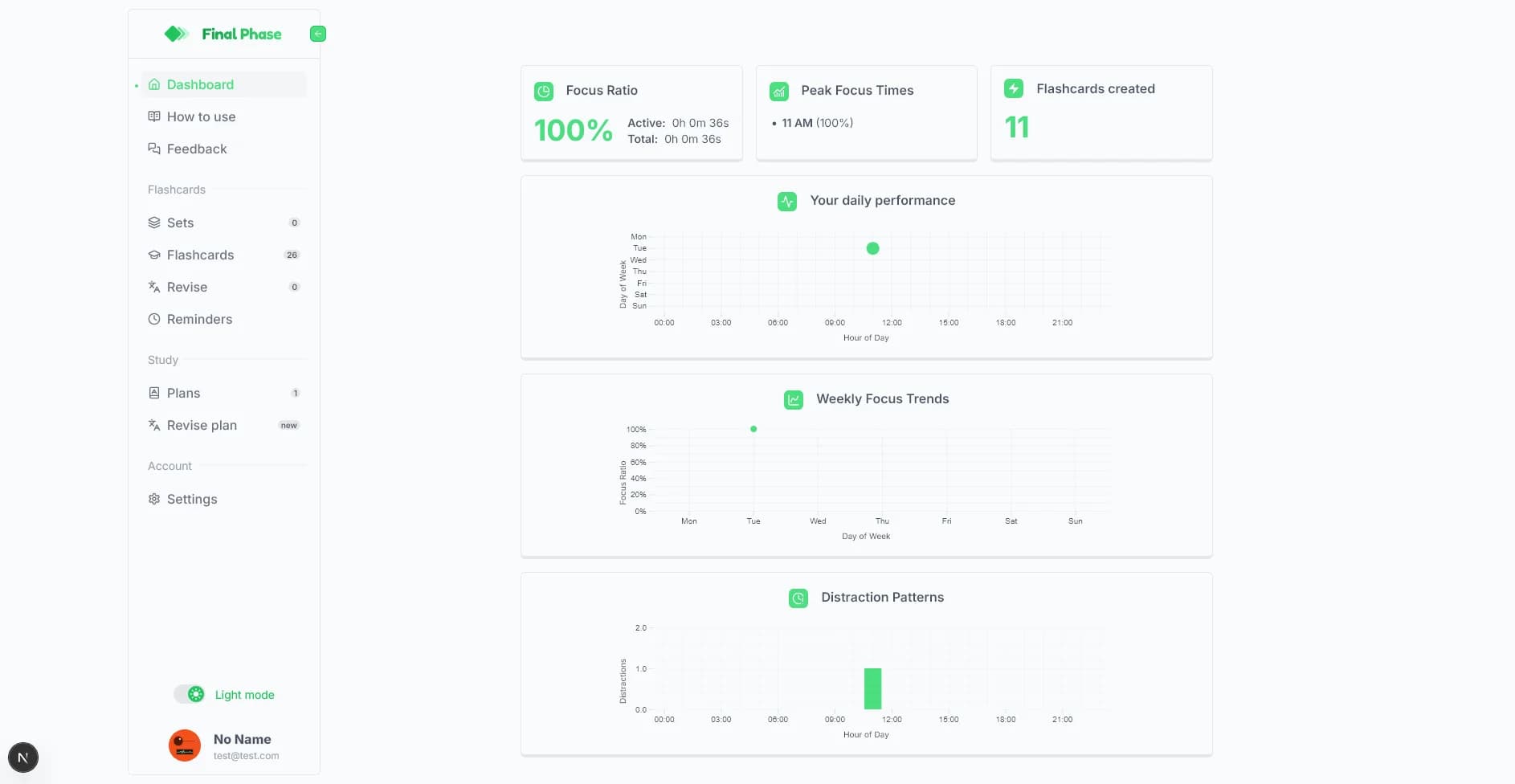
Dashboard page view

Here you can find:

  • Focus Ratio: See the percentage of your study time that was actively focused versus total session time.
  • Peak Focus Times: Identify the times of day when you tend to be most focused.
  • Flashcards Created: A simple count of the total flashcards you've made.
  • Daily Performance Heatmap: Visualize your review consistency and retention over the past month.
  • Weekly Focus Trends: Track how your focus ratio changes throughout the week.
  • Distraction Patterns: See which hours of the day have the most recorded distractions during study sessions.

Use the Dashboard to gain insights into your study habits and identify areas for improvement.


Learn (Flashcards)

The "Learn" section is your primary space for creating, managing, and initially reviewing your digital flashcards.
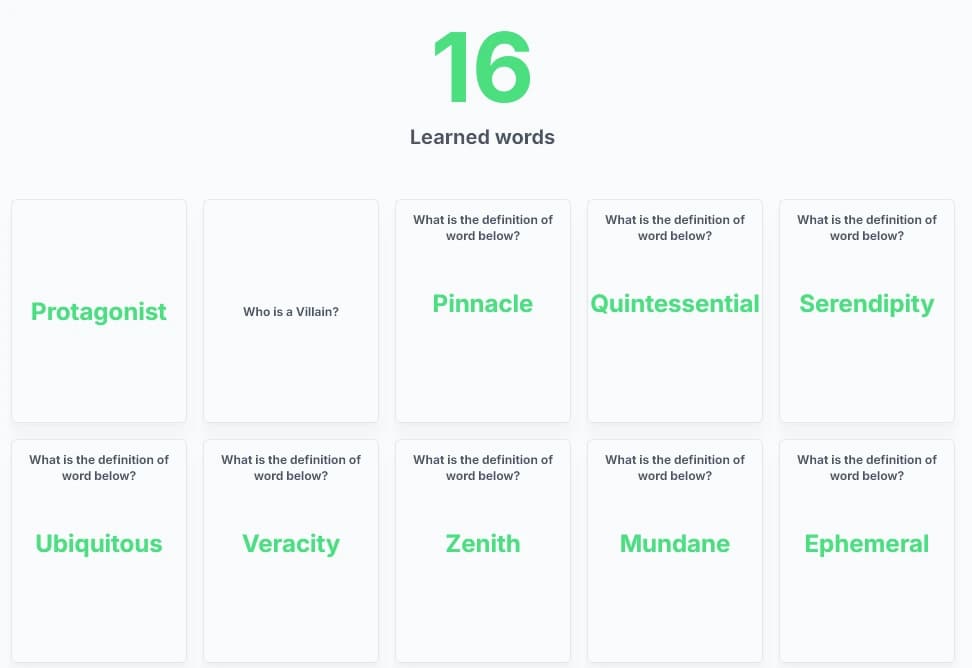
Learn page view

Types Of Flashcards:

Final Phase currently supports 3 types of flashcards:

Concise
What is the capital of France?
Biology
What is Photosynthesis?
  • Index Flashcard: A single-sided card displaying just a highlighted word or phrase (Context field). Useful for quickly capturing terms you want to define or study later. It has no back side for revision.

    Ephemeral
  • Question Flashcard: A traditional two-sided card. The front (Query field) asks a question, and the back (Definition field) provides the answer. Ideal for direct recall testing.

    Who wrote 'Hamlet'?
    Click on the flashcard to flip it and see the answer.
  • Detailed Flashcard: A two-sided card designed for more comprehensive learning. The front usually presents a term (Context field) and optionally a guiding question (Query field). The back (Definition field) provides a detailed explanation, examples, key points, synonyms, or related facts.

    Spaced Repetition
    Explain the concept of...
    Click on the flashcard to flip it and see the details.

Flashcards Management Options:

A floating action panel at the bottom allows you to:

  • Add new flashcards:

  • Edit selected flashcards:

  • Delete selected flashcards:

How To Select Items:

To Edit or Delete flashcards, you need to select them first:

  1. Click and Hold: Press and hold the first flashcard you want to select.
  2. Click Others: After the first long press, you can select/deselect other flashcards with a simple click.
  3. The action buttons (Edit, Delete) will become active when at least one card is selected.

Try it out below:

Lazy
What's the meaning of word below?
Happy
What's the meaning of word below?
(It's only demonstration, buttons do nothing)

Best Practices:

  • Create flashcards as you learn new material.
  • Use the different types strategically (e.g., 'Index' for quick capture, 'Question' for facts, 'Single' for concepts).
  • Regularly review and refine your flashcards for clarity and accuracy.

Sets

The "Sets" section is where you organize your flashcards into logical groups or decks based on topics, subjects, chapters, or any category that makes sense for your study needs.
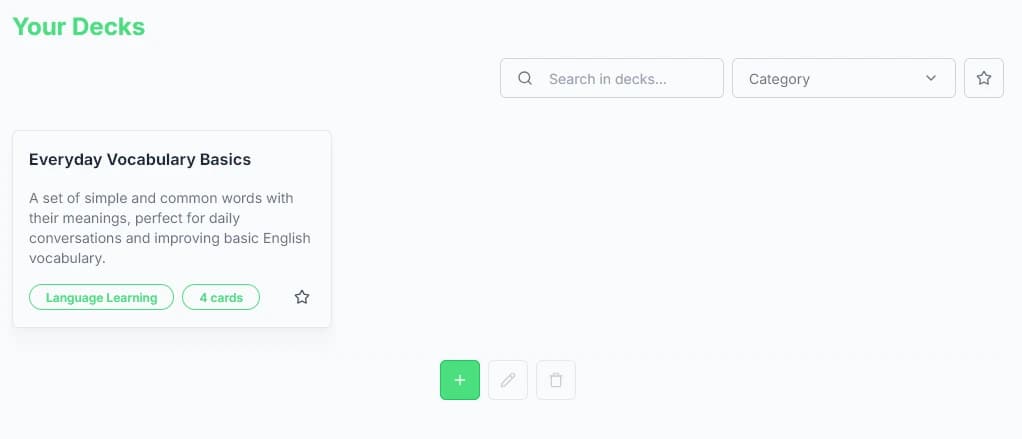
Sets page view

Sets are displayed in a grid, showing the name, description, and number of cards in each set.

Add New Sets:

  • Click the Add button to create a new set:
    You'll be prompted to provide a name, description, and optionally assign existing flashcards or create new ones for the set.

Set Management Options:

Similar to flashcards, you can manage sets using the floating action buttons after selecting them (click and hold the first, then click others):

  • Edit Sets: Modify the name, description, or category of selected sets.

  • Delete Sets: Permanently remove selected sets (this does not delete the flashcards within them, only the set itself).

  • View Set Details: Simply click on a set card (without holding) to navigate to its dedicated page where you can see and manage the flashcards it contains.

Search and Filter:

Use the filters (accessible via the icon) to:

  • Search for sets by name.
  • Filter by category.
  • Show only your favorite sets.

Actions Within a Set:

When viewing the details of a specific set:
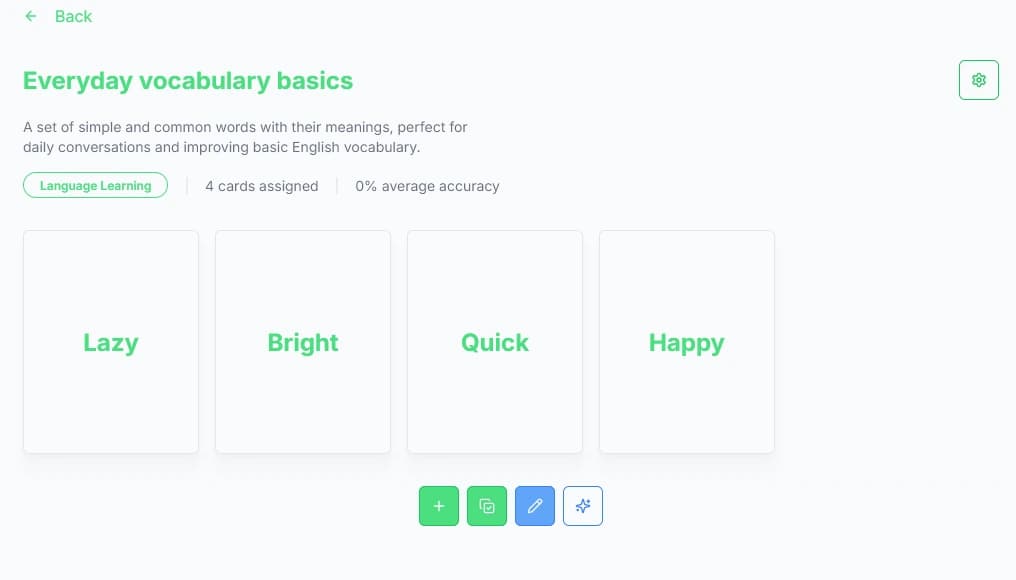
View inside a set

You have options to:

  • Add new flashcards directly to this set:

  • Edit the set's details (name, description, category):

  • Assign existing flashcards from your library to this set:

  • Generate new flashcards using AI based on the content of this set (Premium Feature):

  • Access more options via the context menu (), including deleting the set.

Best Practices:

  • Create sets for distinct topics (e.g., "Chapter 3 Biology," "Spanish Verbs," "Exam 1 Formulas").
  • Use clear names and descriptions.
  • Utilize categories for broader organization.
  • Regularly review set contents to ensure relevance.

Revise (Flashcards)

The "Revise" section is where you actively study your flashcards using the Spaced Repetition System (SRS) to maximize long-term memory retention.
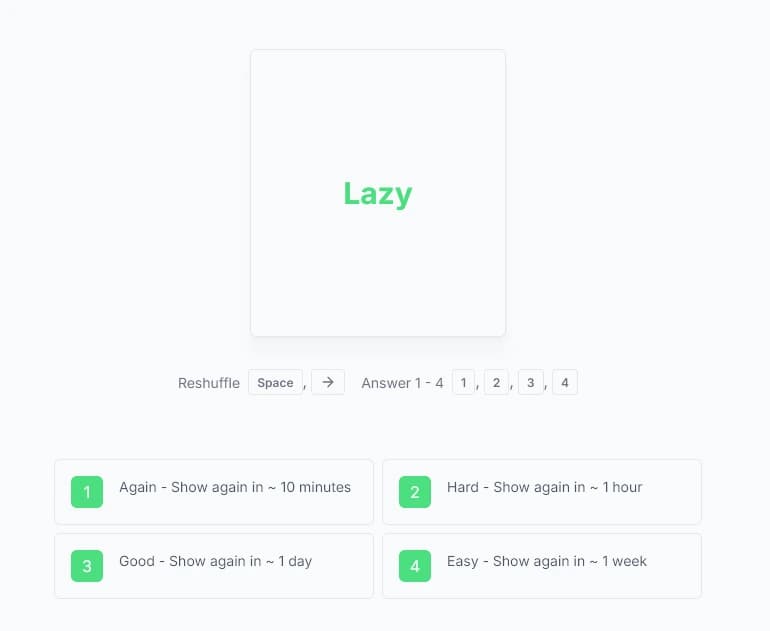
Revise page view

The app prioritizes cards based on your previous performance and the SRS algorithm.
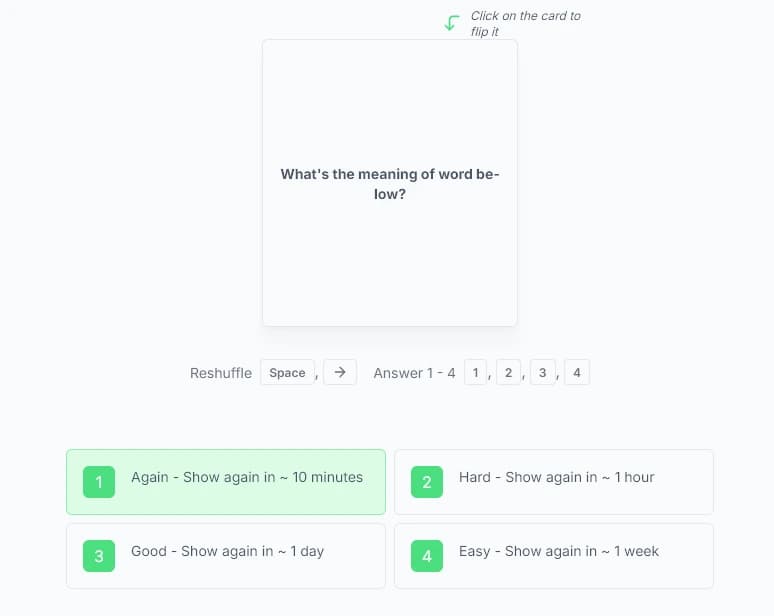
How To Revise:

  1. (Optional) Select a specific Set to revise from the dropdown at the bottom, or revise All Flashcards by default.
  2. The app presents a flashcard due for review.
  3. Recall: Try to remember the answer or information.
  4. Reveal & Rate:
    • For flashcards Without custom answers: Choose one of the four rating buttons based on how well you recalled the information:
      • Again (1): You didn't remember. The card will show up again soon (e.g., 10 minutes).
      • Hard (2): You struggled to remember. It will reappear relatively soon (e.g., 1 hour).
      • Good (3): You remembered it correctly with some effort. It will reappear based on the normal SRS interval (e.g., 1 day or more).
      • Easy (4): You remembered it instantly. It will reappear much later (e.g., several days or weeks).
      Question/Index flashcard revise options
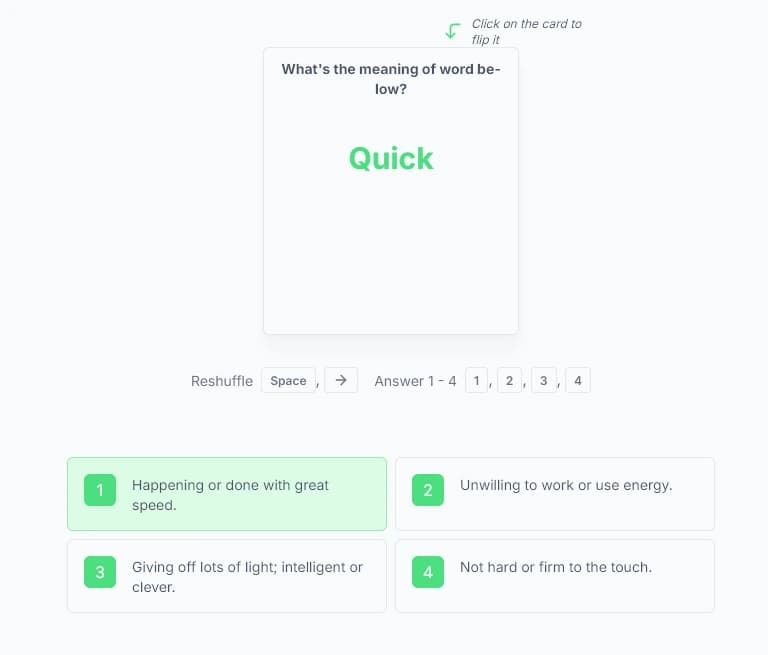
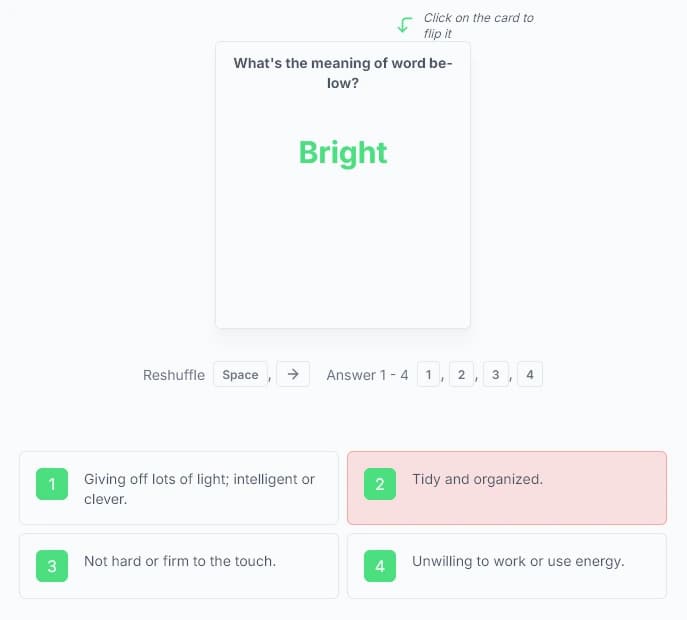
    • For flashcards With custom answers: You will be presented with the correct answer and up to three incorrect "distractor" answers generated.
      • Click the answer you believe is correct.
      • Selecting the Correct Answer (highlighted green) automatically rates the card as 'Good'.
      • Selecting an Incorrect Answer (highlighted red) automatically rates the card as 'Hard'.
      • After selecting an answer, you can click the flashcard to flip it and review the full definition.
      Detailed flashcard correct answerDetailed flashcard wrong answer
  5. Reshuffle: After rating, click the "Next Card" button () or press Spacebar/Right Arrow to get the next card due for review.

When You Revise It All:

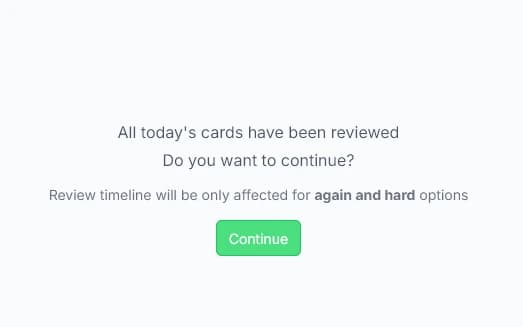
Prompt to continue after revising all due cards

Once you have reviewed all cards currently due according to the SRS schedule, you'll see a message. You have the option to "Continue with All Cards."

  • If you choose to continue, the app will randomly select cards from the entire chosen set (or all cards), regardless of their due date.
  • Important: When continuing in this optional mode:
    • Rating cards as 'Again' or 'Hard' WILL reset their review schedule, making them appear sooner.
    • Rating cards as 'Good' or 'Easy' WILL NOT change their originally scheduled due date. This prevents inflating the SRS intervals too quickly for cards that weren't actually due.

Best Practices:

  • Be Honest: Rate your recall accurately. The SRS works best with honest feedback.
  • Consistency: Aim for short, regular revision sessions (e.g., daily) rather than infrequent long ones.
  • Focus: Minimize distractions during revision to engage actively with the material.

Study Plans (Premium)

The "Study Plans" feature (Premium) leverages AI to create structured learning schedules tailored to your goals, knowledge level, and desired timeframe.
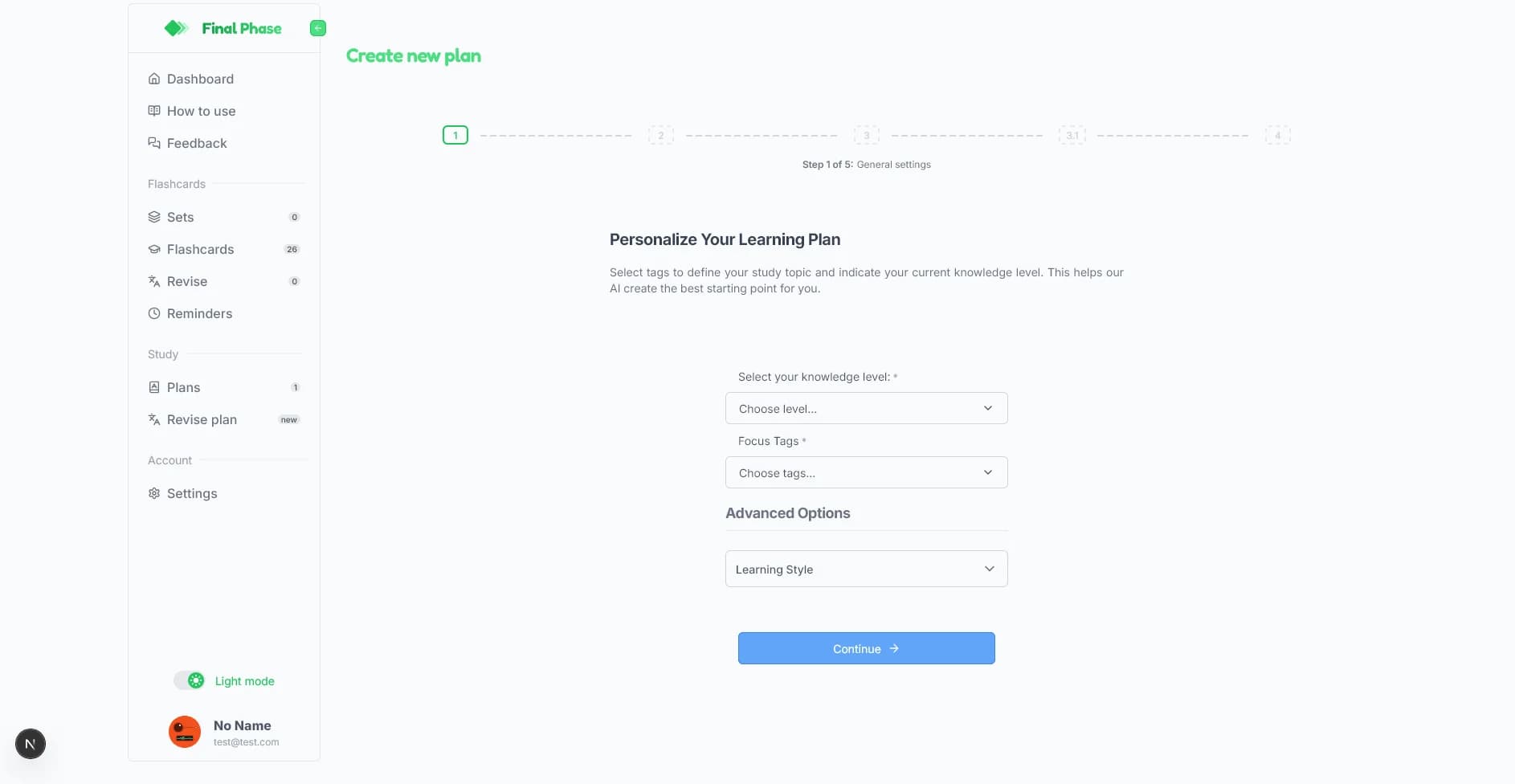
Study Plan Creation Step 1

Creating a New Study Plan:

Navigate to Study > Plans and click the Add button (), or go directly via Study > New Plan. This initiates a multi-step process:

  1. General Settings:
    • Define your Focus Tags (topics you want to learn).
    • Select your current Knowledge Level for the topic (e.g., Beginner, Proficient).
    • (Optional) Choose AI-suggested focus areas based on your initial tags and level.
    • (Optional) Refine AI generation with Advanced Options like preferred learning style, card length, and mnemonic preferences.
  2. Plan Type & Duration:
    • Choose Coverage Focus (Core Concepts, Broad Overview, Deep Dive).
    • Select the Plan Duration (e.g., 7 days, 14 days, 30 days).
    • (Optional) Add Blacklist Tags (topics to exclude).
    • (Optional) Provide an Additional User Prompt for the AI.
  3. Review Picked Flashcards:
    • The app shows flashcards from your library matching the plan criteria.
    • You can reject any cards that don't fit your vision for this plan.
  4. Generate & Customize Flashcards (Optional):
    • If you need more flashcards for the plan, the AI will generate suggestions.
    • Review the AI suggestions. Accept the ones you like (they'll be added to your library and the plan) or reject unwanted ones.
  5. Generate & Review Study Plan:
    • The AI generates the daily study schedule based on all previous inputs and selected flashcards.
    • Review the generated plan, which outlines daily objectives, cards to review, new cards to learn, and estimated metrics.
    • Accept the plan to save it.

Viewing Your Plans:

Access your saved study plans from the Study > Plans section. Click on a plan to view its details, including the daily breakdown and progress.
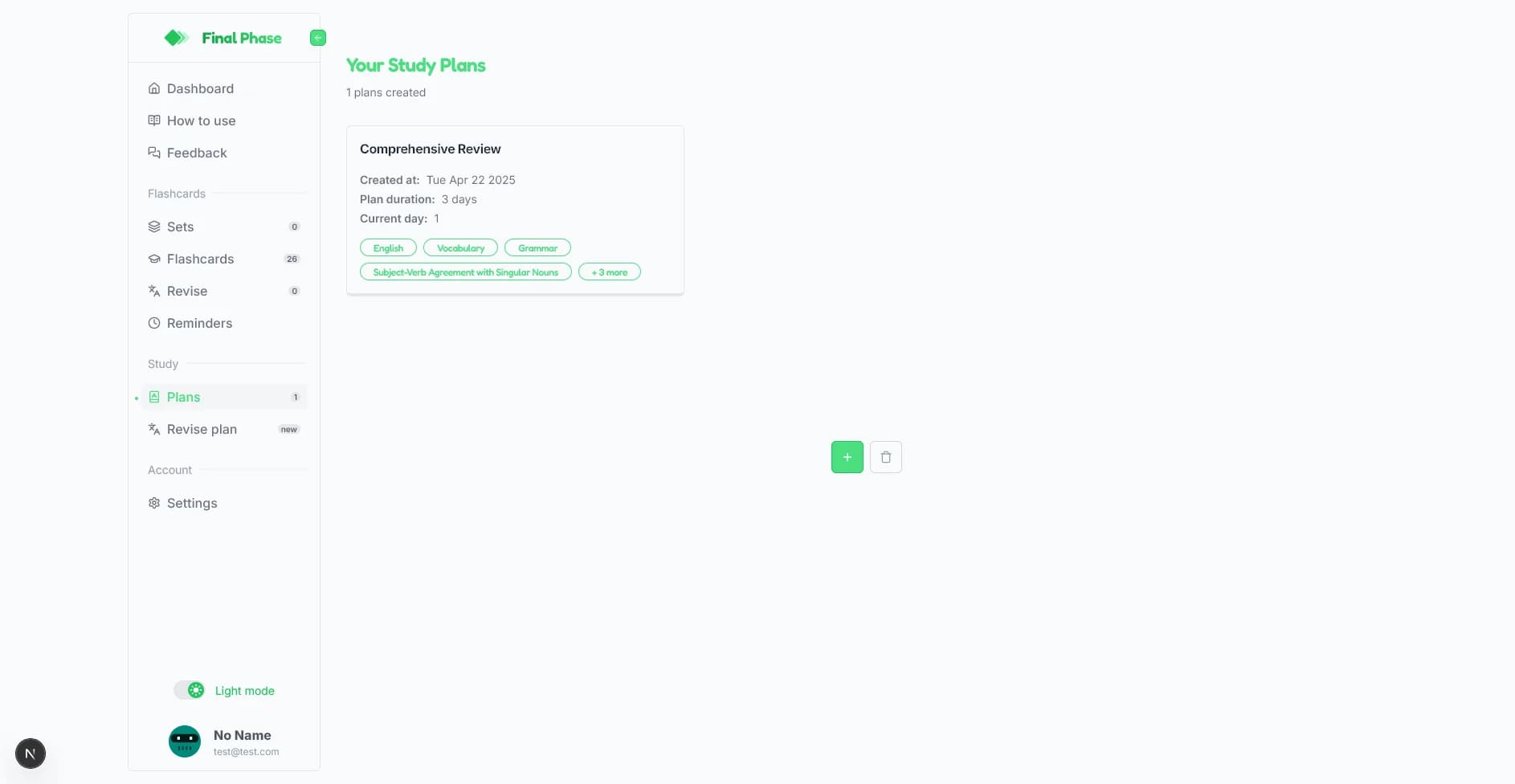
Study Plans List

Revising Your Study Plan:

Navigate to Study > Revise Plan. This dedicated revision mode guides you through your active study plan day by day.
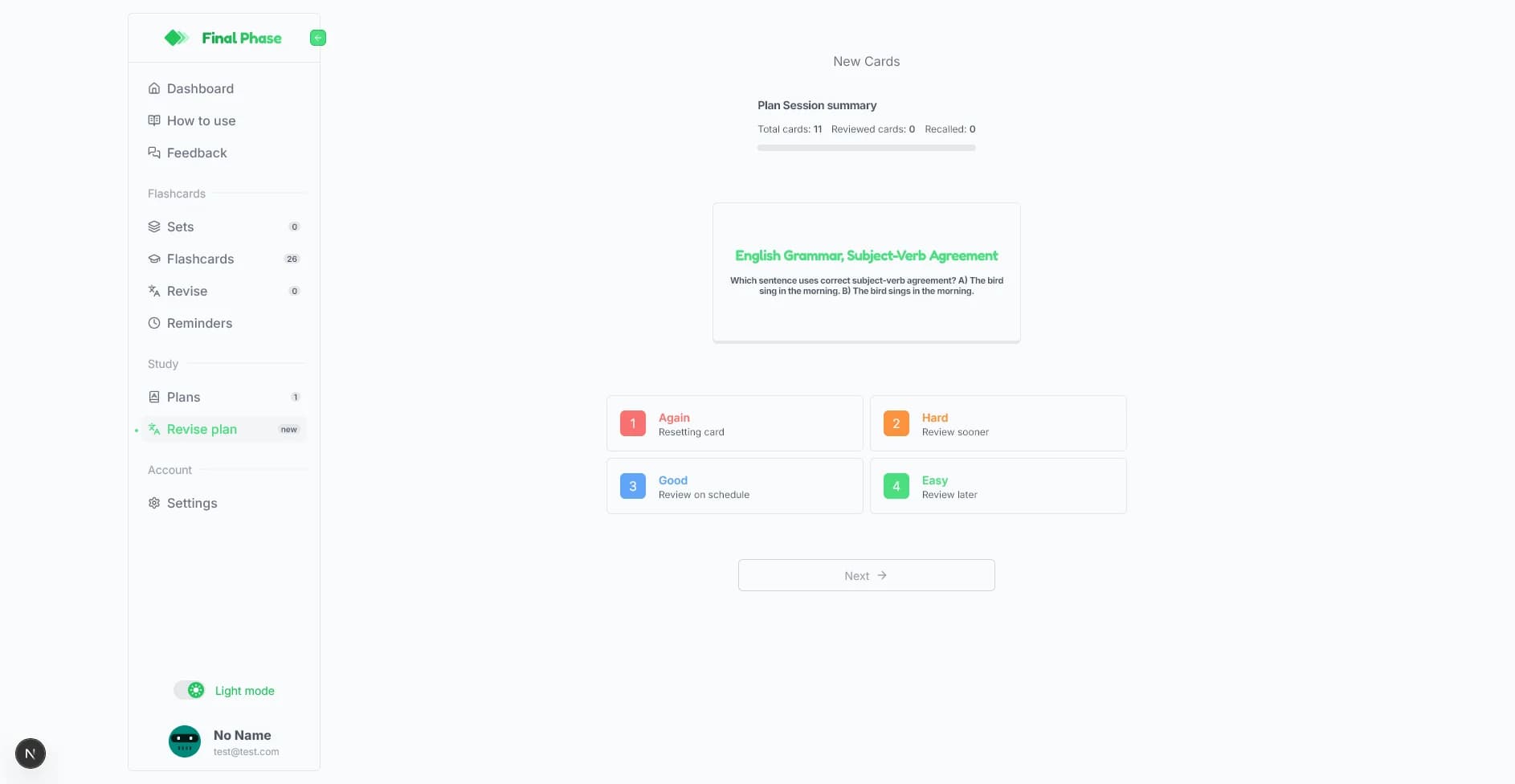
  • Select Plan: Choose the plan you want to revise from the dropdown.
  • Daily Stages: Each study day typically involves several stages:
    1. Review Old Cards: Revise cards from previous days that are due according to SRS.
    2. (AI Summary - Optional): Get an AI-generated summary of concepts from any cards you answered incorrectly during the review stage.
    3. Learn New Cards: Be introduced to the new flashcards scheduled for the current day.
    4. (AI Summary - Optional): Get an AI-generated summary for any new cards answered incorrectly.
    5. Review All Incorrect: A final review session focusing specifically on all cards marked incorrect during the current day's session.
  • Progress: The app tracks your progress through the plan and updates the schedule for the next day upon completion.
Study Plan Revision View

Best Practices:

  • Clearly define your learning goals and topic scope using Focus Tags.
  • Be realistic about your current knowledge level and desired plan duration.
  • Actively review and curate the flashcards (both yours and AI-suggested) included in the plan.
  • Follow the daily revision schedule consistently for best results.

Reminders

Set up notifications to remind yourself to study. Access this section via Flashcards > Reminders.
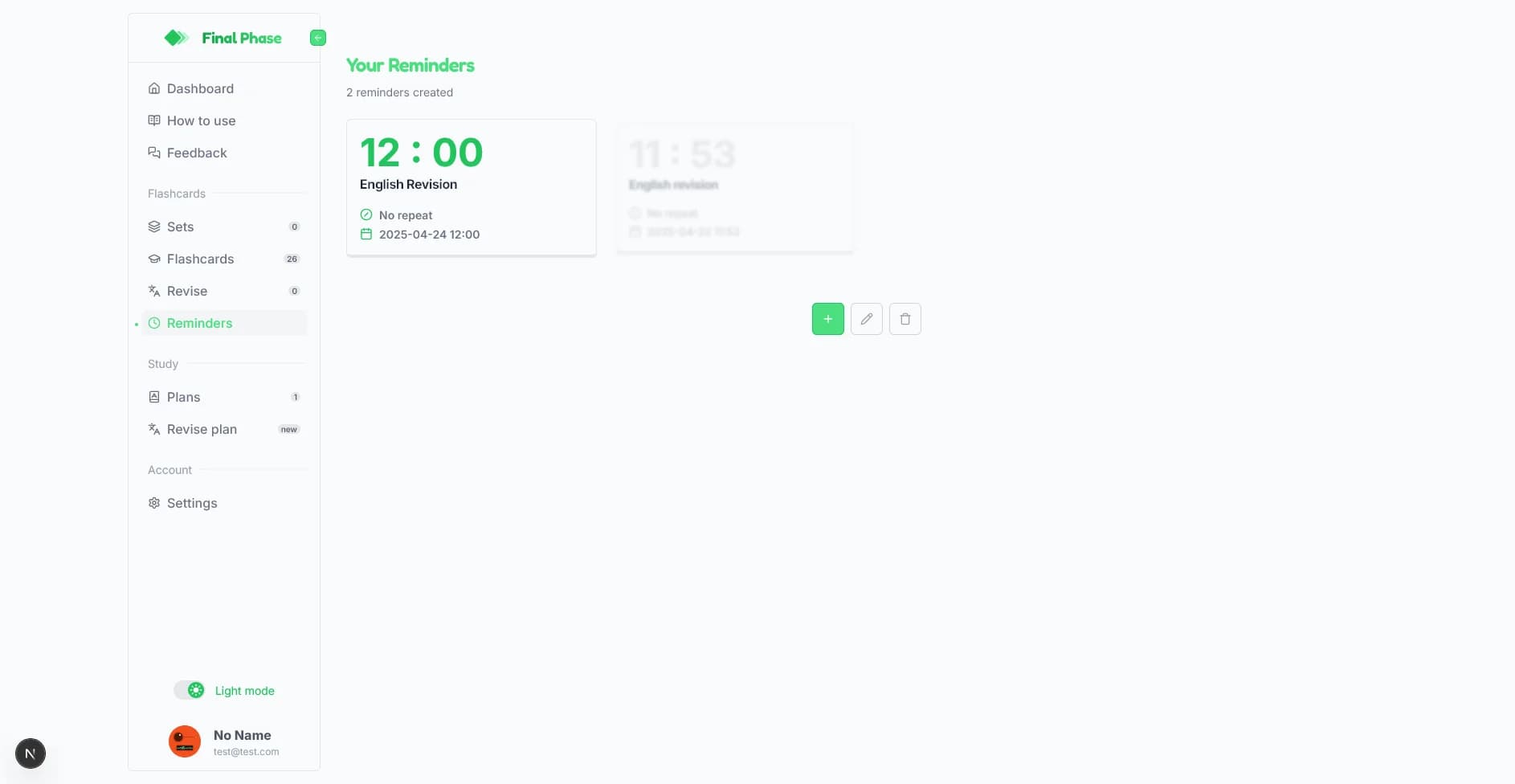
Reminders Page
  • Enable Notifications: You'll need to grant browser/OS notification permissions when prompted to use this feature. If blocked, you'll need to enable them in your system settings.
  • Create Reminders: Click the Add button () to set up a new reminder. You can specify:
    • Title: A name for your reminder.
    • Start Date & Time: When the reminder should first occur.
    • Repeat: How often it should repeat (None, Daily, Weekly, Monthly).
    • Enabled/Disabled: Toggle the reminder on or off.
  • Manage Reminders: Select reminders (long press first, then click) to Edit () or Delete () them using the floating action buttons.

Settings

Manage your account, preferences, and app data in the Account > Settings section.
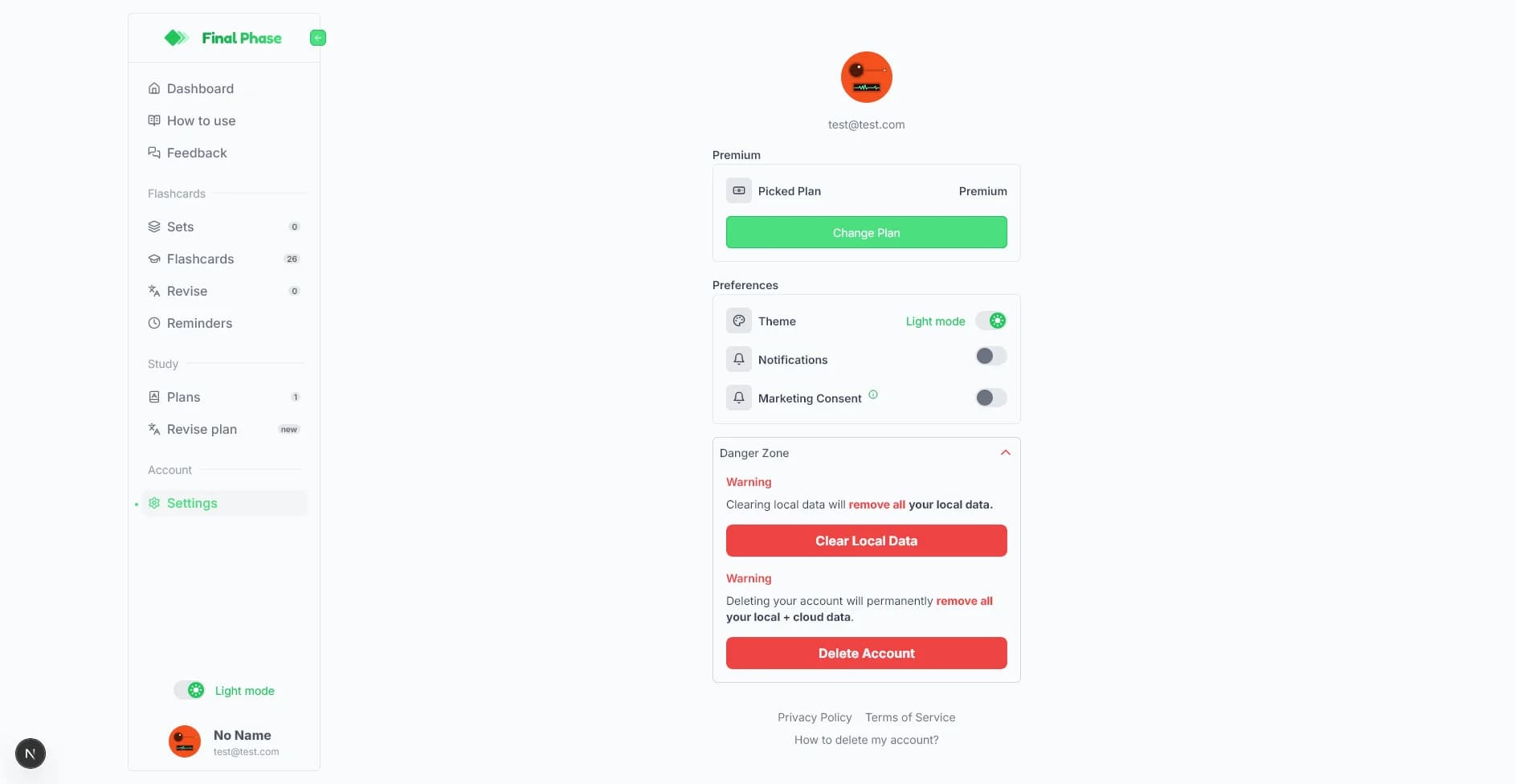
Settings Page

Key areas include:

  • Profile: View your avatar, name, and email associated with your account (if logged in).
  • Premium: Check your current subscription plan (Free or Premium) and status. Includes a link to the Pricing page to change your plan.
  • Preferences:
    • Theme: Switch between Light and Dark mode.
    • Notifications: Manage push notification permissions (links to browser/OS settings if already granted/denied).
    • Marketing Consent: Opt-in or out of receiving promotional emails.
  • Danger Zone:
    • Clear Local Data: Removes all app data stored only on your current device's browser (flashcards, sets, stats, etc.). Does not affect cloud-synced data if logged in. Use with caution.
    • Delete Account: Permanently removes your user account and all associated data (local + cloud). This action is irreversible.
  • Links: Access the Privacy Policy, Terms of Service, and instructions on how to delete your account.

Methodology

Final Phase is built upon effective learning principles:

  1. Spaced Repetition System (SRS): Our core revision mechanic. By reviewing information at scientifically optimized increasing intervals, you strengthen memory traces and combat the forgetting curve, leading to efficient long-term retention.
  2. Active Recall: Instead of passively re-reading notes, the app forces you to actively retrieve information from memory (answering questions, recalling definitions). This mental effort significantly enhances learning and retention.
  3. Chunking: Organizing flashcards into manageable Sets allows you to break down large subjects into smaller, focused chunks, making learning less overwhelming and more targeted.
  4. AI Assistance (Premium): Leveraging AI helps overcome the initial hurdle of content creation (generating flashcards, plans) and provides personalized feedback (incorrect card summaries), allowing you to focus more on the learning process itself.

By consistently using Final Phase and its features, you can make your study sessions more productive, efficient, and ultimately more successful. Happy learning!